DooFlix for TV
Watching movies and TV shows on a phone is convenient, but a bigger screen can make the experience more comfortable. This is where DooFlix for TV can be useful for Android TV users who want to watch content on a larger display.
However, installing an Android app on a TV is not always the same as installing it on a phone. TV devices have different screen layouts, remote controls, hardware, and compatibility requirements. Android also treats TV apps differently because they need to support navigation from a distance.
Before installing DooFlix on a television, it is worth checking your device, Android version, available storage, and whether the particular APK build supports TV use.
What Is DooFlix for TV?
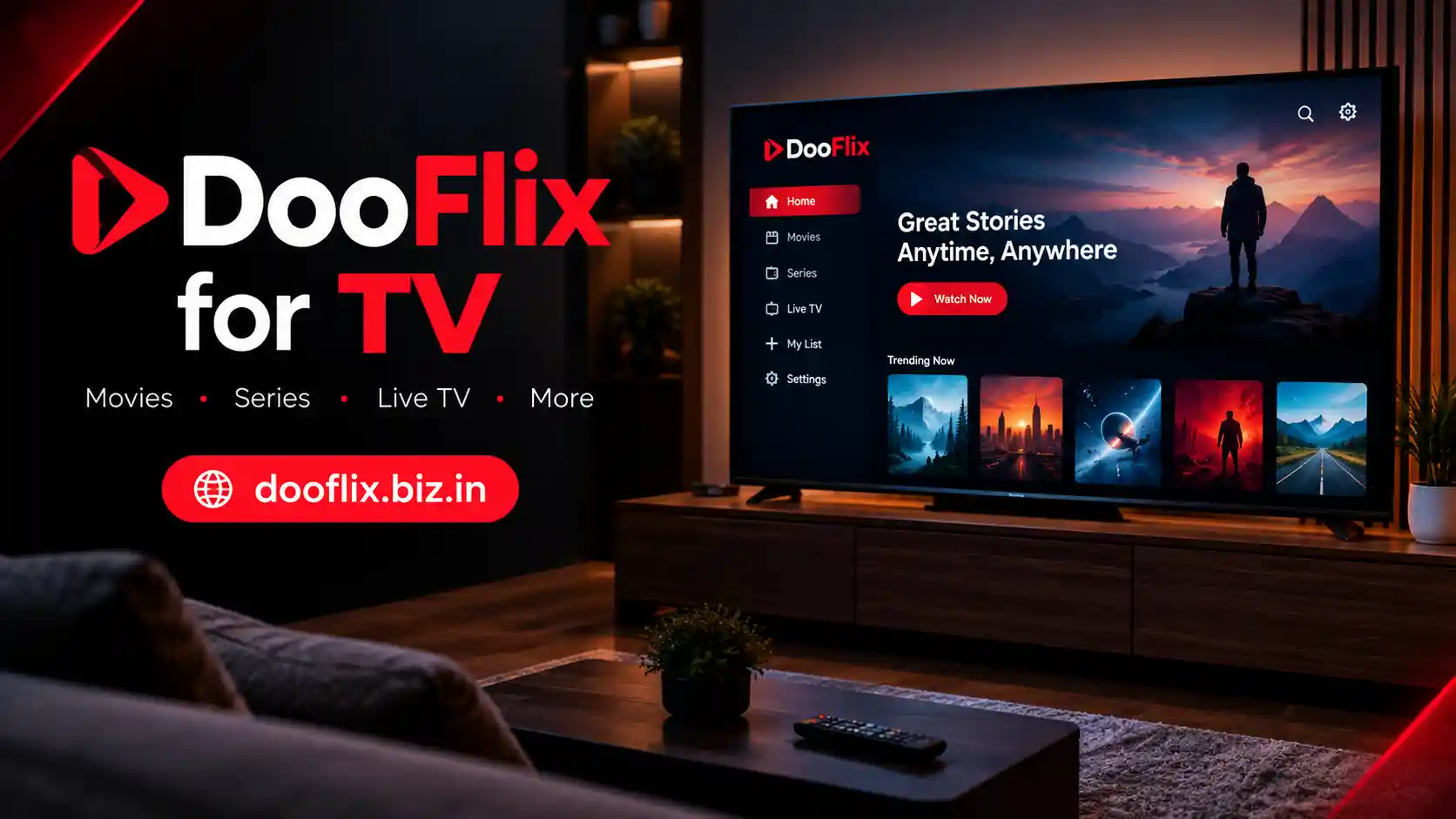
DooFlix for TV refers to using the DooFlix app on a compatible Android TV device or Android-based streaming box.
The main difference is the viewing experience. Instead of using a touchscreen, you normally control the application with a remote. A proper TV-friendly app should have clear menus and navigation that can be used with directional buttons.
Android’s TV development guidelines specifically recommend interfaces that are easy to understand from a distance and work with a directional pad and select button.
If a DooFlix APK was designed mainly for phones, it may not provide the same experience on a television. Installation and usability are separate issues, so an APK that installs successfully may still not be optimized for a TV screen.
DooFlix TV Compatibility
Compatibility depends on the particular DooFlix APK version and your TV’s Android environment.
Android runs on different types of devices, including phones, tablets, and televisions. Apps can also have different hardware and software requirements that affect which devices they support.
Before installing DooFlix, check:
- Your TV’s Android version
- Available storage
- Processor and device architecture
- Whether the APK supports your device
- Remote-control navigation
- Whether the app is designed for TV screens
If your television uses Android TV or Google TV, you should also check whether the app is available through the built-in app store before considering an APK installation.
DooFlix for Android TV
Android TV is designed for televisions and streaming devices. Apps available for this platform can provide layouts and navigation specifically made for larger screens.
If the DooFlix version you are using supports Android TV, navigation should be easier with a standard TV remote. Menus, buttons, and playback controls should also be practical to use from a distance.
However, not every Android APK is automatically a TV app. A mobile APK may require touch controls that are not available on a television.
For this reason, always check the requirements of the specific DooFlix version before installing it.
DooFlix on Smart TV
Not every Smart TV uses Android TV.
Some televisions run their own operating systems, while others use Android TV or Google TV. An Android APK is intended for Android-based systems, so you should first identify the operating system installed on your television.
If your TV does not run Android, a normal Android APK may not be compatible with it.
You can usually find your TV’s software information under Settings, About, or Device Preferences, although the exact menu can differ between manufacturers.
DooFlix TV System Requirements
There is no universal DooFlix TV requirement that applies to every APK release. Requirements can change when an app is updated.
For a smoother experience, check the following before installation:
Android Version
Check which Android or Android TV version your television uses. Android compatibility can change between platform releases, so an older APK may behave differently on a newer system.
Storage Space
Make sure your TV has enough free storage for the APK and the application itself. A device with very little available space can also have problems installing or running apps.
Hardware
Older TV boxes and televisions may have limited RAM or processing power. This can affect app startup, video playback, and navigation.
Remote Support
A TV-friendly application should be usable without a touchscreen. Android TV apps are expected to provide navigation suitable for remote controls.
How to Download DooFlix APK for TV
If DooFlix is not available through your TV’s official app store, some users may consider installing an APK manually.
Before doing this, verify that the APK is intended for your TV and comes from a source you trust. Google warns that applications downloaded from unknown sources can put devices and personal information at risk.
A basic process is:
- Check your TV’s Android version.
- Confirm that the DooFlix APK supports your device.
- Download the APK from a source you trust.
- Transfer the file to the TV if necessary.
- Open the APK using a suitable file manager.
- Follow the installation instructions shown on the screen.
- Open DooFlix and test navigation and playback.
If the TV blocks the installation, do not repeatedly install the same file. Check the device’s app-installation permissions and APK compatibility first.
How to Install DooFlix on Android TV
The exact installation process depends on your Android TV or Google TV version.
If DooFlix is officially available through Google Play on your device, using the built-in store is the simpler option. Android TV provides access to apps through the Play Store, while Google TV also lets users search for available apps and install them directly.
For an APK installed from outside the Play Store, your TV may require permission for the specific application being used to install the file.
Be careful when allowing installations from outside official stores. Google Play Protect checks apps during installation and can warn about potentially harmful applications.
How to Use DooFlix with a TV Remote
Once the app is installed, test the main controls with your remote.
You should be able to:
- Move between menus
- Select content
- Start and pause playback
- Adjust volume
- Return to the previous screen
- Navigate through categories
- Open and close playback controls
If some buttons do not respond, the APK may have been designed primarily for touchscreen devices.
A TV-optimized application should provide navigation that works well with directional controls rather than relying on touch gestures.
DooFlix TV Streaming Features
The available features can depend on the specific DooFlix version you install.
On a compatible TV setup, users may find it more comfortable to browse content and watch videos on a larger screen. The experience can also depend on your internet connection, TV hardware, and video source.
Keep in mind that a larger screen does not automatically improve video quality. The available video resolution and your internet connection still affect playback.
DooFlix TV Video Quality and Playback
Video playback depends on several factors.
Your internet connection needs enough speed and stability for the selected video quality. At the same time, the TV or streaming box must have enough processing power to handle the video format.
If playback is slow or frequently pauses, check your connection first. You can also restart the TV, close unused applications, and check whether a newer compatible version of the app is available.
DooFlix TV Buffering and Loading Issues
Buffering can happen for different reasons, so changing the app alone may not fix it.
Try these basic steps:
- Check your internet connection.
- Restart the TV or Android TV box.
- Restart your router.
- Close apps running in the background.
- Check available storage.
- Try a lower video quality if the option is available.
- Check whether the issue happens with other streaming apps.
If other apps also buffer, the problem may be related to the network or TV rather than DooFlix.
DooFlix APK Not Installing on TV
If the APK does not install, several things could be responsible.
The file may not support your Android version or TV architecture. It could also be incomplete or incompatible with an existing version of the application.
Start by checking the APK requirements and your TV’s Android version. Also make sure there is enough free storage.
If an older DooFlix version is already installed, an incompatible package can sometimes create an installation conflict.
DooFlix for Fire TV and TV Boxes
Android-based TV boxes can have different hardware and software configurations. Fire TV devices also use Amazon’s own TV platform, so compatibility should not be assumed simply because an APK works on another Android TV device.
Before installing any APK on a TV box, check the operating system and architecture of the device.
The same APK may perform differently on two streaming devices because their processors, RAM, software versions, and supported formats can differ.
DooFlix TV Safety and Permissions
Safety is important when installing an APK outside an official app store.
Google states that apps from unknown sources can create security and privacy risks. Play Protect can scan applications and warn users when it detects potentially harmful software.
Before installing DooFlix on a TV:
- Use a source you trust.
- Avoid modified APKs from unknown websites.
- Check the file before opening it.
- Keep Play Protect enabled when possible.
- Review permissions requested by the application.
- Remove the APK if it behaves suspiciously.
An APK being available online does not by itself prove that the file is safe.
Final Thoughts
DooFlix for TV can provide a more comfortable viewing setup when the APK and television are compatible. However, compatibility should be checked before installation because Android TV devices have different requirements from ordinary phones.
Check your TV’s Android version, storage, hardware, and APK compatibility first. If the app is available through the official TV app store, that is generally the simpler installation route. For APK files from outside the store, pay extra attention to the source and security of the file.
FAQs About DooFlix for TV
Can I install DooFlix APK on Android TV?
It depends on the specific DooFlix APK and your Android TV device. Check the APK’s compatibility requirements before installing it.
Does DooFlix work on every Smart TV?
No. Smart TVs use different operating systems. An Android APK generally requires an Android-based TV environment.
Can I use DooFlix with a TV remote?
If the app supports TV navigation, you should be able to use the remote. A phone-focused APK may not provide proper remote navigation.
Why is DooFlix APK not installing on my TV?
Possible reasons include an incompatible Android version, unsupported device architecture, insufficient storage, a damaged APK, or an existing app conflict.
Is it safe to install DooFlix APK on a TV?
The safety depends on the APK file and where it comes from. Google warns that apps installed from unknown sources can create security and privacy risks.
Can I install DooFlix from Google Play?
If the app is available for your TV through Google Play, you can install it directly from the TV’s app store. Availability can vary by device and region.
Why does DooFlix work on my phone but not my TV?
Phone and TV devices can have different hardware, Android versions, controls, and app requirements. An APK designed for phones may not be optimized for TV use.
Does Android TV support APK installation?
Android TV can run Android applications, but installation from outside the Play Store depends on the device’s settings and permissions. Apps from unknown sources should be treated carefully because of potential security risks.