
Watching a movie or TV show without subtitles can be frustrating, especially when you rely on captions to follow the dialogue. If subtitles are not showing on DooFlix, the problem may be related to the video, subtitle language, player settings, app cache, or the specific content you are watching.
Sometimes the subtitle option is simply turned off. In other cases, subtitles may not be available for that particular video. Android also has its own caption settings, but these do not work with every media app.
The good news is that you can check several simple things before assuming the app is broken. Below are the most common reasons for missing subtitles and the fixes worth trying.
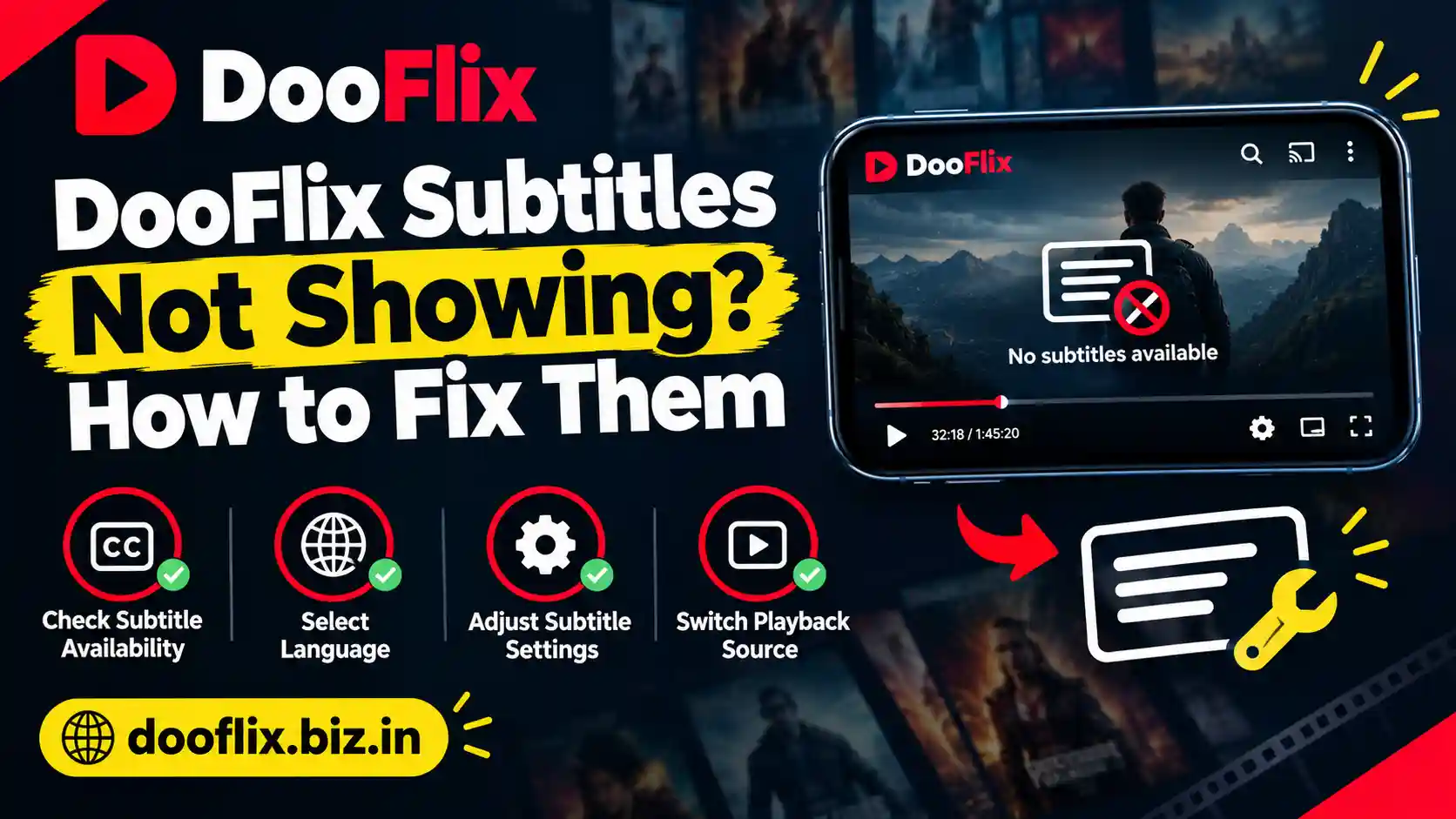
Why Are DooFlix Subtitles Not Showing?
There is no single reason why subtitles disappear. The problem can come from the video source, app settings, or your Android device.
Common causes include:
- Subtitles are turned off
- The selected language is unavailable
- The video does not include subtitles
- The subtitle track is not loading
- App cache is causing a temporary issue
- The app version has a playback problem
- The subtitle text is hidden by player settings
- The video source has missing subtitle data
- Your Android caption settings are not supported by the app
Start by checking the subtitle option inside the video player. This can quickly tell you whether subtitles are available.
Turn On Subtitles in the Video Player
The first thing to check is the player itself.
Open the movie or episode and tap the screen to display the playback controls. Look for a CC, Subtitles, or similar option.
If subtitles are available, select the option and choose the language you want.
If there is no subtitle or CC option at all, the video may not have a subtitle track. Caption controls normally appear only when subtitles are available for the content.
Check the Subtitle Language
You may have subtitles enabled but still see nothing because the selected language is not available.
For example, a video may offer English subtitles while you are looking for another language. Open the subtitle menu and check all available options.
If the language you want is missing, try another available language first. This helps confirm whether the problem is with the language track rather than the player.
Try Another Movie or Episode
This is one of the easiest ways to find the cause.
Play another movie or episode and check whether subtitles appear there.
If subtitles work on other videos, your phone and app are probably handling captions correctly. The original video may simply have a missing or faulty subtitle track.
If subtitles do not work anywhere, continue with the device and app troubleshooting steps below.
Restart the DooFlix App
A temporary playback problem can sometimes stop subtitle data from loading correctly.
Close DooFlix completely and remove it from your recent apps. Then open it again and play the same video.
Give the video a few seconds to load before checking the subtitle menu again.
If the subtitles still do not appear, move to the next step instead of repeatedly restarting the app.
Clear the App Cache
Cached files can sometimes cause unexpected playback behavior.
On most Android phones, you can find the cache option through a path similar to:
Settings > Apps > DooFlix > Storage > Clear Cache
The exact menu can differ depending on your phone manufacturer and Android version.
Clear the cache and reopen the app. Avoid clearing app data unless you understand what it will remove, as this can reset stored app information.
Update DooFlix to a Compatible Version
If you are using an older version, subtitle or video-player problems may occur.
Check whether a newer version is available from the source you normally use. Before installing any APK update, make sure the file comes from a source you trust.
Also check your Android version. An app update may require a newer Android release than your device supports.
Check Android Caption Settings
Android includes system-level caption settings on supported devices.
You can usually find them under:
Settings > Accessibility > Caption Preferences
From there, you may be able to turn captions on and adjust their size and style. However, Google notes that these settings may not work with media apps that do not support Android’s Caption Preferences.
Therefore, changing Android caption settings will not necessarily fix subtitles inside every streaming application.
Try Changing Caption Size and Style
Sometimes subtitles are technically enabled but difficult to see because of their size, style, or display settings.
Android lets supported devices change caption size and style from the Caption Preferences menu.
Try using a larger text size and a more visible caption style.
If nothing changes inside DooFlix, the app may not use Android’s system caption preferences. In that case, use the subtitle controls provided by the video player itself.
Check Your Internet Connection
Subtitles may need to load along with the video. If your connection is unstable, the video may start while subtitle data fails to load correctly.
Try switching between Wi-Fi and mobile data.
You can also test another video. If everything loads slowly, the problem may be your network rather than the subtitle feature.
A stable connection is especially important when the video and subtitle track are loaded separately.
Restart Your Android Phone
A simple restart can clear temporary system problems.
Close DooFlix, restart your phone, and open the app again after Android has fully loaded.
Then play the same content and check the subtitle menu.
This is a quick step, so it is worth trying before changing more advanced settings.
Subtitles Work on One Video but Not Another
If subtitles work on some content but not on another, the problem is likely related to the individual video.
The affected movie or episode may have:
- No subtitle track
- An incomplete subtitle file
- An unsupported subtitle language
- A damaged subtitle track
- Incorrect subtitle synchronization
In this situation, changing your phone settings may not solve the problem. Try another title to confirm whether the issue is limited to that content.
Subtitles Are Available but Text Is Not Visible
Sometimes the subtitle option is active, but the text does not appear clearly on the screen.
Check the subtitle style and size if the player provides those options.
You can also test Android’s caption preferences if the app supports them. Google specifically notes that caption preferences are not guaranteed to work with media apps that do not support the feature.
If the subtitle text remains invisible, try another video or restart the player.
Subtitle Timing Is Wrong
A different problem occurs when subtitles appear but do not match the dialogue.
This usually points to subtitle synchronization rather than a display problem.
If the player has a subtitle delay or synchronization option, adjust it slightly until the text matches the spoken dialogue.
If there is no synchronization control, try another subtitle track or another source for the same content if one is legitimately available.
DooFlix Subtitles Not Working After an Update
If subtitles stopped working immediately after an app update, the new version may have introduced a playback issue or changed how subtitle tracks are handled.
First, restart the app and clear its cache.
Then check whether the same problem happens with several different videos. If every title has the same issue, the problem may be related to the app version rather than a single video.
Avoid installing random older APK files simply to fix one feature. Unknown APK files can introduce security risks.
What If There Is No Subtitle Option?
If the player does not show any subtitle or CC button, there may be no subtitle track for that video.
This is different from subtitles being broken.
For example, Google’s caption guidance notes that when the caption control is not available, captions may not be available for that particular video.
Try another movie or episode to confirm.
Quick Fixes for DooFlix Subtitles
If you want to troubleshoot the problem quickly, follow these steps:
- Open the video player.
- Check the CC or subtitle button.
- Select an available subtitle language.
- Try another movie or episode.
- Close and reopen DooFlix.
- Clear the app cache.
- Check your internet connection.
- Restart your Android phone.
- Check Android caption preferences.
- Update the app only from a trusted source.
These steps can help identify whether the issue comes from the app, device, network, or individual video.
Final Thoughts
DooFlix subtitles may stop showing for several reasons, and the solution depends on where the problem comes from. Start with the subtitle controls inside the video player and check whether captions are actually available.
If subtitles work on other videos, the problem is probably limited to the affected content. If they fail everywhere, restart the app, clear its cache, check your connection, and review the available Android caption settings.
Also remember that Android’s caption preferences do not automatically control every media application.
With these checks, you can usually narrow down the problem without making unnecessary changes to your phone.
FAQs About DooFlix Subtitles
Why are subtitles not showing on DooFlix?
Subtitles may be disabled, unavailable for the video, set to another language, or affected by a temporary player or app problem.
How do I turn on subtitles in DooFlix?
Open the video, tap the screen to show the player controls, and look for the CC or subtitle option. If a subtitle track is available, select your preferred language.
Why does one DooFlix video have subtitles but another does not?
Subtitle availability can vary between individual movies and episodes. One video may include a subtitle track while another does not.
Can clearing the DooFlix cache fix subtitles?
It can help if temporary cached data is causing a playback problem. Clear the cache and restart the app before testing the video again.
Can Android settings control DooFlix subtitles?
Android has Caption Preferences, but Google notes that these settings may not work with media apps that do not support them.
Why are subtitles available but not visible?
The subtitle style, size, player settings, or subtitle track may be causing the problem. Try changing the caption style or testing another video.
Why are my subtitles out of sync?
The subtitle track may not match the video timing. If the player has a subtitle delay or synchronization option, adjust it to match the dialogue.
What should I do if the CC button is missing?
Try another movie or episode first. If the CC option is missing there too, check the app version and restart the application. A missing caption control can also mean that subtitles are not available for that content.