
DooFlix buffering or loading slowly can ruin your streaming experience, especially when a movie keeps stopping or takes too long to start. You may see a loading screen for several minutes, experience constant interruptions, or find that videos stop playing without warning. These problems can happen even when the app opens normally. In most cases, the cause is related to your internet connection, app cache, device performance, or video source. The good news is that you can try several simple fixes before reinstalling the app. This guide explains why DooFlix may be slow and how to improve playback on your Android device.
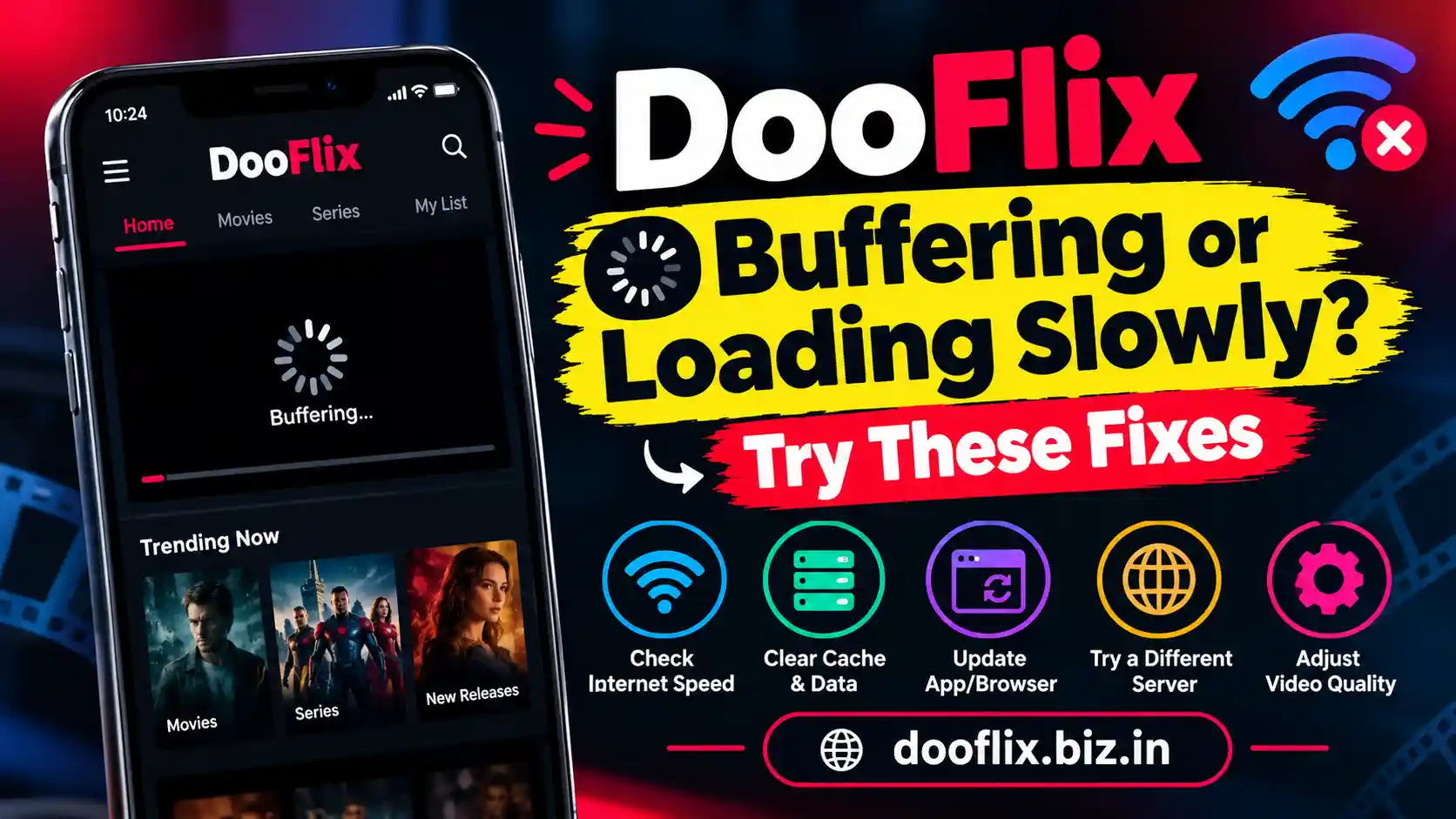
Why Is DooFlix Buffering or Loading Slowly?
There are several reasons why DooFlix may struggle to load movies and TV shows. Sometimes, the problem comes from your phone or internet connection. In other cases, the video source or streaming service may be responsible.
Here are some common causes:
- Slow internet speed: Your connection may not be fast enough for smooth video playback.
- Unstable Wi-Fi: A weak signal can interrupt streaming, even when your internet plan offers good speeds.
- Corrupted cache files: Temporary app data may cause loading problems.
- High video quality: Higher resolutions usually require more bandwidth.
- Low device storage: A phone with limited free space may struggle to run apps smoothly.
- Background activity: Downloads and other apps may use your available internet or system resources.
- Server problems: The streaming service or video source may be temporarily unavailable.
- Outdated app version: An older version may have bugs or compatibility issues.
Finding the actual cause is important. Try the following solutions one by one to see which one works for your device.
1. Check Your Internet Connection
A slow or unstable internet connection is one of the first things to check when DooFlix keeps buffering. Even if the app opens, videos may not load properly when your connection cannot deliver enough data.
Start by opening a few websites or using another streaming app. If they also load slowly, your internet connection may be the problem.
Try these steps:
- Switch from Wi-Fi to mobile data, or the other way around.
- Move closer to your Wi-Fi router.
- Restart your router if the connection is unstable.
- Pause downloads and other activities that use your bandwidth.
- Turn Airplane Mode on briefly, then turn it off.
After checking your connection, open DooFlix and play the video again. If playback improves, your network was likely causing the issue.
2. Restart the DooFlix App
Sometimes, DooFlix may become slow because of a temporary app error. Restarting it can help clear the problem without changing your settings.
Simply returning to the home screen may not close the app completely. Follow these steps to restart it properly:
- Open the recent apps screen on your phone.
- Find DooFlix and swipe it away.
- Wait a few seconds.
- Open the app again.
- Select a video and check its playback.
If the app is still stuck on the loading screen, force-stop it through your Android settings. Go to Settings, select Apps, choose DooFlix, and tap Force stop.
Now launch the app again. This simple step may fix temporary loading problems.
3. Lower the Video Quality
High-quality videos require more internet bandwidth than lower-resolution videos. If your connection is slow, HD or higher-resolution playback may cause frequent buffering.
If DooFlix provides video quality settings, try selecting a lower resolution. For example, switch from 1080p to 720p or 480p.
A lower resolution may not look as sharp, but it can help videos play more smoothly on a limited connection.
Keep these points in mind:
- Use a lower resolution when your internet is slow.
- Choose higher quality when your connection is stable.
- Avoid changing video quality repeatedly while the video is loading.
- Test different quality settings to find what works for your network.
If the video continues buffering at every available quality, the issue may be related to the internet connection or the video source.
4. Clear the DooFlix Cache
DooFlix stores temporary files to help the app load content more efficiently. Over time, these files may become corrupted or cause performance issues.
Clearing the cache can help when the app takes too long to open, videos keep loading, or playback becomes inconsistent.
Here is how to clear it on Android:
- Open Settings on your phone.
- Go to Apps or App Management.
- Select DooFlix.
- Tap Storage or Storage Usage.
- Choose Clear Cache.
- Open DooFlix and test the video again.
The exact menu names may differ between Android devices.
Clearing the cache normally does not remove your app settings or account information. However, avoid selecting Clear Data unless you are prepared to reset the app and potentially lose locally stored information.
5. Restart Your Wi-Fi Router
If DooFlix buffers frequently on your home Wi-Fi, your router may be having a temporary connection problem.
Restarting the router can refresh the connection and resolve some network issues.
To do this, turn off your router and unplug its power cable. Wait around 30 seconds, reconnect it, and allow it to restart fully. Then connect your phone to Wi-Fi and open DooFlix.
You can also try moving your phone closer to the router. Walls, furniture, and distance can weaken the Wi-Fi signal.
If other devices also experience slow internet, contact your internet provider if the problem continues. The issue may not be related to DooFlix itself.
6. Close Background Apps and Downloads
Other apps may use your internet connection while you are streaming. Large downloads, cloud backups, and app updates can reduce the bandwidth available for video playback.
Your phone may also slow down when too many demanding apps are running at the same time.
Before opening DooFlix, close apps you do not need and pause active downloads. If your phone has limited memory, restarting it may also help.
You do not need to close every app on your device. Focus on activities that use a lot of bandwidth or system resources.
Once you have freed up those resources, play the video again and see whether the buffering has improved.
7. Check Whether the Video Source Is Working
Sometimes, DooFlix buffering is caused by the particular video source rather than your device or internet connection.
A movie may keep loading because its source is slow, unavailable, or experiencing technical problems. This can happen even when other content plays normally.
To check whether the source is responsible:
- Try playing another movie or episode.
- Close the current video and open it again.
- Wait a few minutes before trying again.
- Check whether other users are reporting similar problems, if reliable information is available.
If other videos play smoothly, the issue may be limited to the original content source.
If every video fails to load, check your internet connection and whether the service is experiencing a wider outage.
8. Update the DooFlix App
An outdated version of DooFlix may contain bugs that affect loading speed or video playback. An update may fix these issues if the developer has released a compatible version.
Check the app’s official distribution source for available updates. Before installing anything, make sure the version is suitable for your Android device.
When updating the app:
- Check the installed version on your phone.
- Review the available update information.
- Use a source you trust.
- Follow the installation instructions.
- Restart the app and test playback.
If buffering started immediately after an update, the new version may have a bug or compatibility issue. Check for a verified fix rather than downloading random APK files.
An update will not necessarily solve buffering caused by slow internet or an unavailable video source.
9. Free Up Your Phone’s Storage
A phone with very little free storage may struggle to run apps smoothly. Although storage space does not directly determine your internet speed, it can affect overall device performance.
If DooFlix is slow, check how much storage is available.
Open Settings and select Storage. If your phone is nearly full, remove unnecessary files and apps.
You can free up space by:
- Deleting old downloads you no longer need.
- Removing duplicate photos and videos.
- Uninstalling unused applications.
- Clearing temporary files from supported apps.
- Moving personal files to another storage location.
After freeing up space, restart your phone and open DooFlix again. This may help if low storage was affecting the app’s performance.
10. Restart Your Android Phone
If DooFlix continues to load slowly, restart your phone. A restart can clear temporary system issues and close background processes that may be affecting performance.
Press and hold your phone’s power button, then select Restart. Wait for the device to turn back on before opening DooFlix.
Try playing the same video again. If the app works better after restarting, a temporary system issue may have caused the slowdown.
If the problem returns every time you use the app, continue with the other troubleshooting steps.
11. Check for Android Compatibility Issues
An app may not work properly if its version is incompatible with your phone’s operating system. This can happen after an Android update or when using an older device.
If DooFlix has become slow or unstable, check whether the installed version supports your Android version.
You should also review your phone’s system updates. If an official update is available, read its details and install it if appropriate for your device.
Avoid installing unofficial operating systems or changing advanced settings just to improve one app. These changes can create additional problems.
If the installed DooFlix version does not support your device, you may need to wait for a compatible release.
12. Reinstall DooFlix as a Last Resort
If none of the previous solutions works, the app installation may be damaged. Reinstalling DooFlix can replace missing or corrupted files.
However, uninstalling the app may remove locally stored data and settings. Try the simpler fixes first.
If you decide to reinstall it, follow these steps:
- Open Settings and select Apps.
- Choose DooFlix and tap Uninstall.
- Restart your phone.
- Obtain a compatible installation file from a trusted source.
- Install the app and open it.
- Test whether videos load correctly.
Do not install unknown APK files or disable Android security protections to force an installation. If a fresh installation still buffers, the problem may be related to your network, device compatibility, or the service itself.
How to Prevent DooFlix Buffering in the Future
You may not be able to prevent every streaming problem, but a few simple habits can help reduce interruptions.
- Keep your internet connection stable.
- Use a video quality that matches your available bandwidth.
- Keep enough free storage on your phone.
- Clear the app cache when persistent loading problems occur.
- Install verified updates when they are available.
- Avoid running large downloads while streaming.
- Restart your router if your home network becomes unstable.
These steps can help your device run more smoothly and make it easier to identify problems when they occur.
Frequently Asked Questions
Why is DooFlix buffering even with a fast internet connection?
A fast internet plan does not guarantee smooth streaming. Wi-Fi interference, network congestion, an overloaded video source, or a temporary service issue can still cause buffering. Try switching networks and playing another video to identify the cause.
How do I stop DooFlix from buffering?
Start by checking your internet connection and lowering the video quality if the option is available. You can also restart the app, clear its cache, close background downloads, and restart your router.
Why does DooFlix take so long to load movies?
Movies may take a long time to load because of a weak connection, an unavailable video source, or an app-related problem. If only one movie loads slowly, its source may be responsible. If every video is slow, check your connection and app performance.
Does clearing the DooFlix cache improve streaming?
Clearing the cache may help if corrupted temporary files are causing loading errors or app performance issues. However, it will not increase your internet speed or fix an unavailable streaming server.
Why does DooFlix buffer only on Wi-Fi?
Your Wi-Fi signal may be weak, your router may be experiencing problems, or other devices may be using the available bandwidth. Move closer to the router, restart it, and test DooFlix using mobile data.
Can changing video quality fix DooFlix buffering?
Yes, lowering the resolution can help when your connection cannot handle high-quality video. If the app offers different playback settings, try a lower resolution and check whether the video plays more smoothly.
Why is DooFlix buffering on Android TV?
Possible causes include a weak Wi-Fi signal, limited device resources, outdated app software, or a problem with the video source. Restart your TV, check the network connection, and clear the app cache if your device supports it.
Should I download another DooFlix APK to fix buffering?
Not necessarily. First, check your internet connection, clear the cache, and restart the app. If an update is needed, use a trusted source and verify that the version is compatible with your device. Installing unknown APKs may create security risks.
Is DooFlix buffering caused by my phone or the server?
It can be either. If other apps and videos work normally but one DooFlix video keeps buffering, the video source may be responsible. If your entire phone is slow or other streaming apps also struggle, check your device and internet connection.
Final Thoughts
DooFlix buffering or loading slowly can have several causes, so start with the simplest fixes. Check your internet connection, restart the app, lower the video quality, and clear temporary cache files. These steps can resolve many common playback problems without requiring a new installation.
If the issue continues, test another video and check whether the service is available. When only one source fails, changing your phone settings may not help. Reinstall the app only after trying the basic solutions, and always use a trusted source for updates.